Cisco
The CrowdSec Cisco integration connects CrowdSec's hosted blocklist endpoint to your Cisco firewall.
Cisco calls this feature Security Intelligence feeds, which provide dynamic threat intelligence that can be used in your firewall policies.
Ensure your Cisco device supports Security Intelligence feeds. Depending on the make and model, the steps to ingest the blocklist may differ.
The vendor documentation is available in the References section below.
Setup a Cisco Integration Endpoint
- 1- Create an integration
- 2- Remediation Component
- 3- Save your credentials
- 4- Subscribe to blocklists
Step 1 - Create an integration in the CrowdSec Console
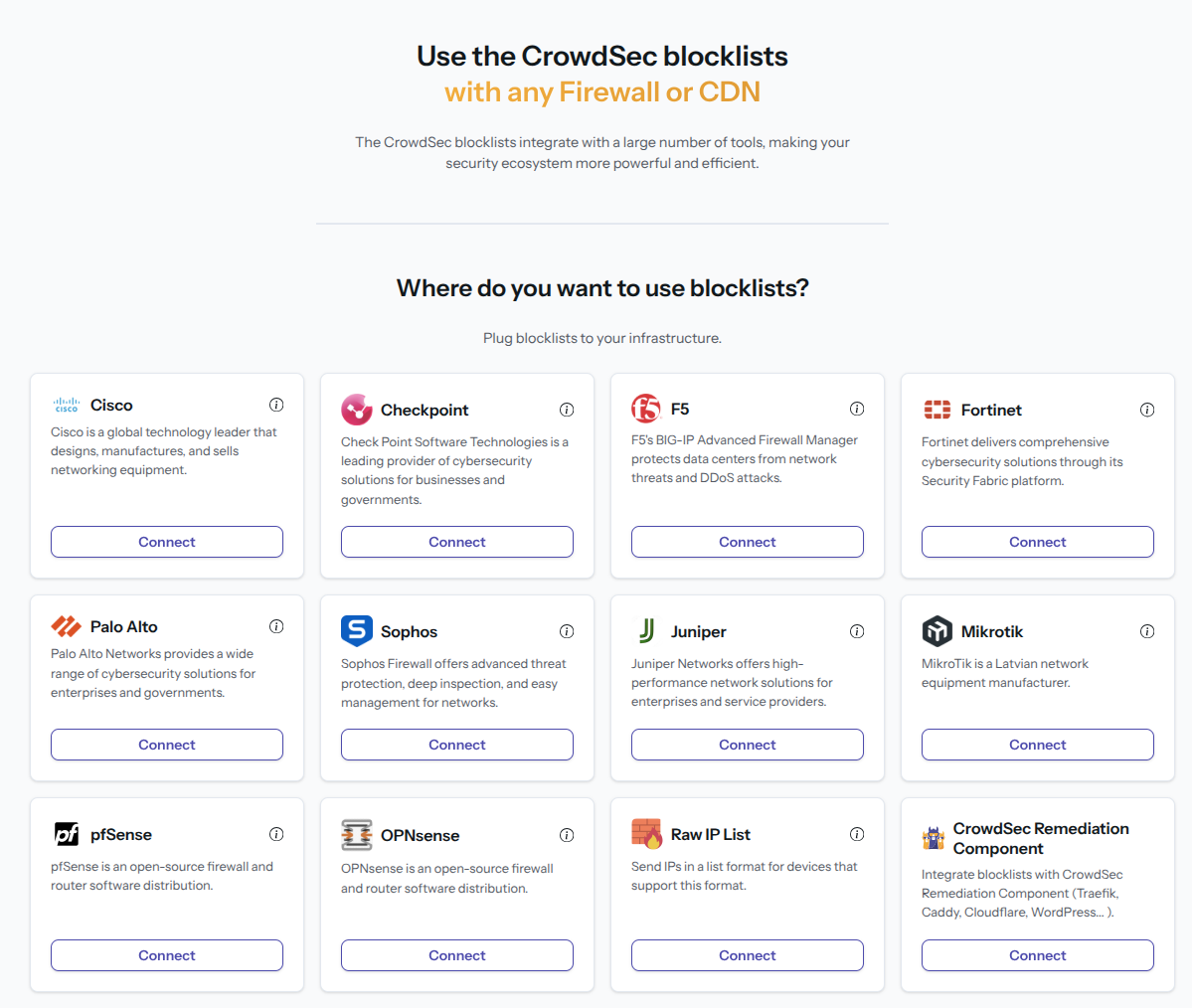
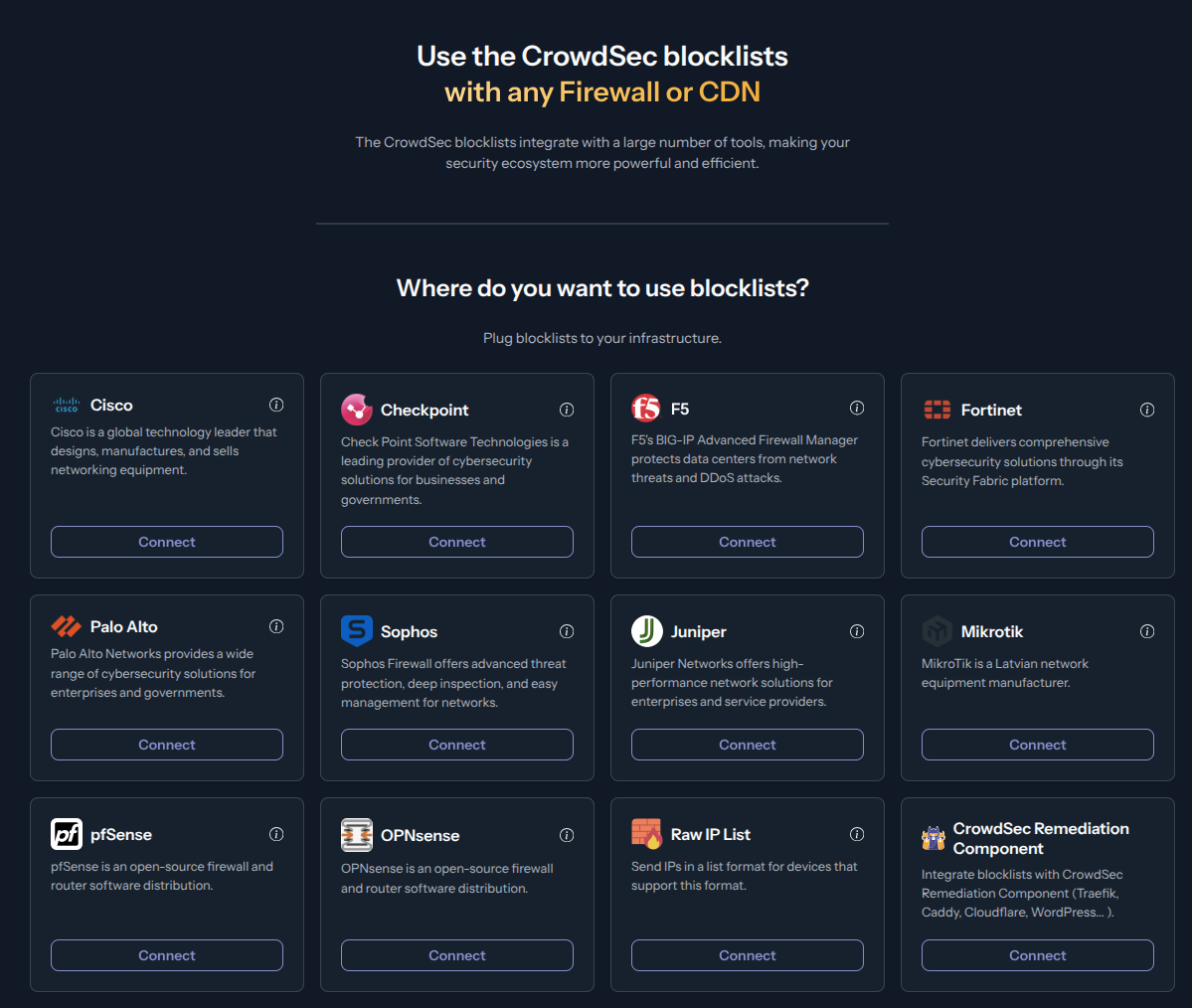
In your CrowdSec Console account, navigate to the Blocklist tab in the top menu bar, then select the Integrations sub-menu. Choose the integration type you need, then click Connect.
If you don't have a CrowdSec Console account, sign up here. On mobile, use the menu icon in the top-right corner, tap Blocklist, then Integrations.
Step 2 - Fill in integration details
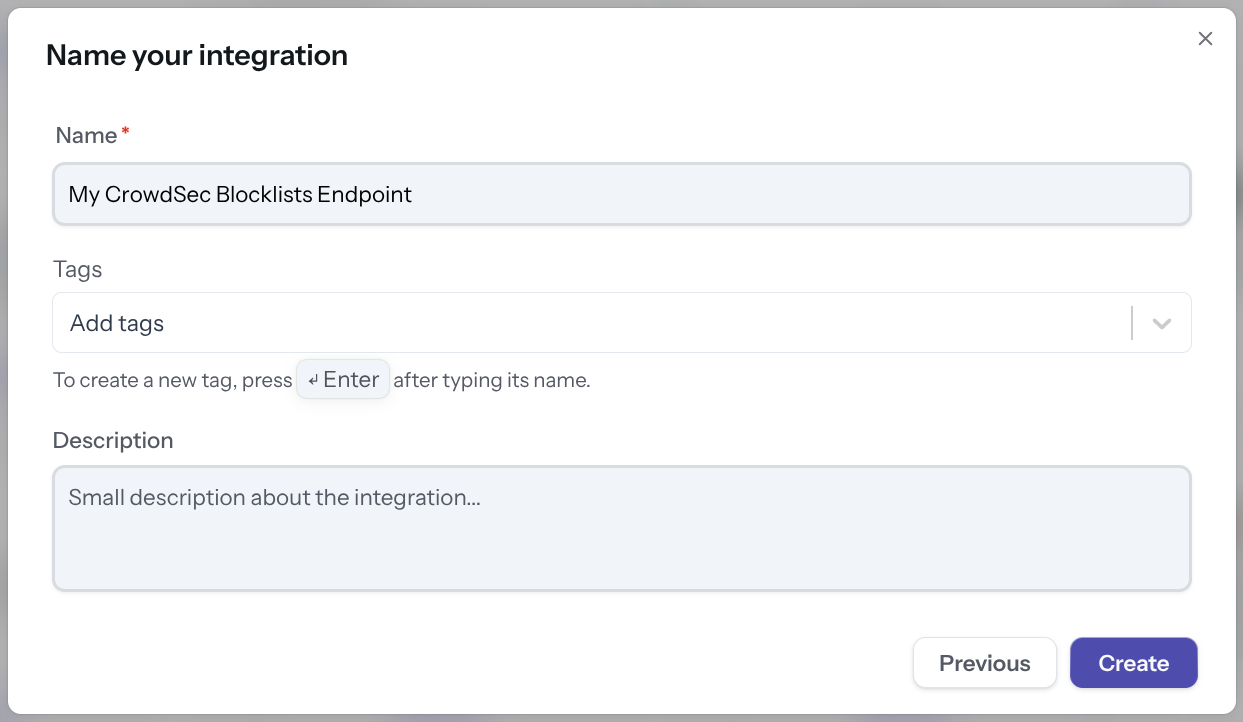
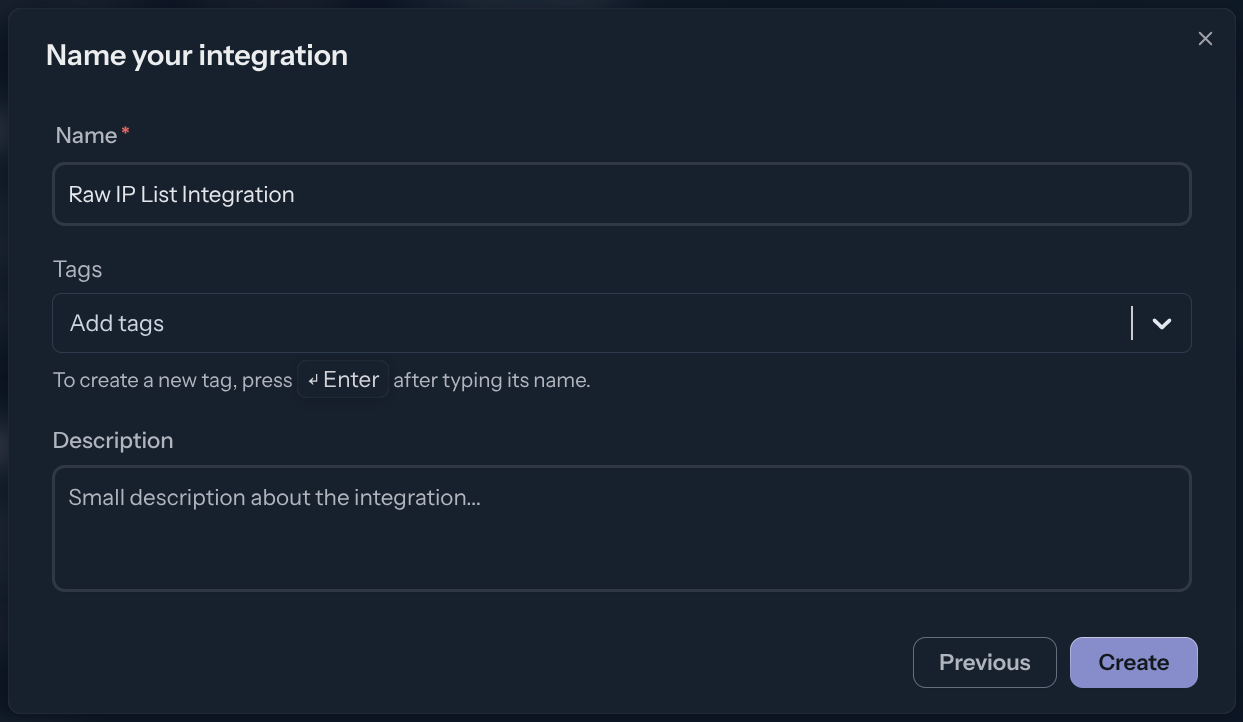
Name the integration (must be unique to your account) Optionally, add a description and tags to help you identify it later. Then click Create.
Step 3 - Copy your credentials
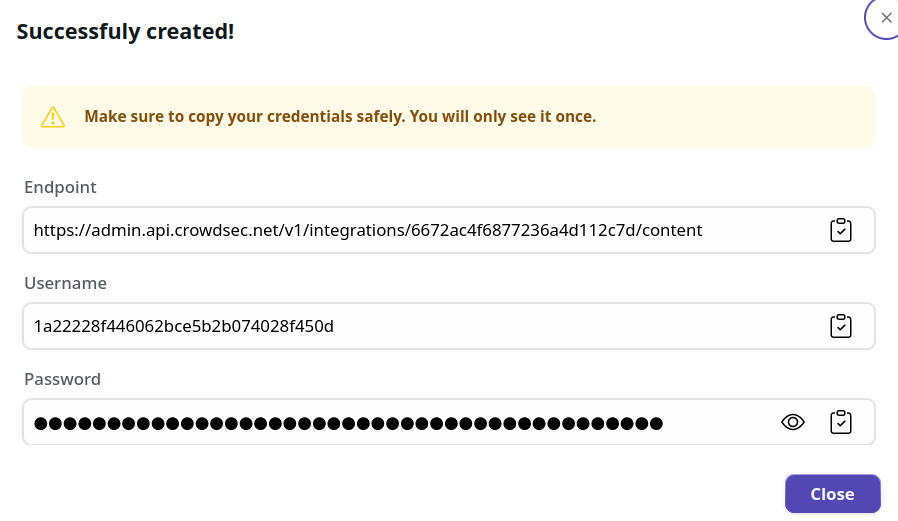
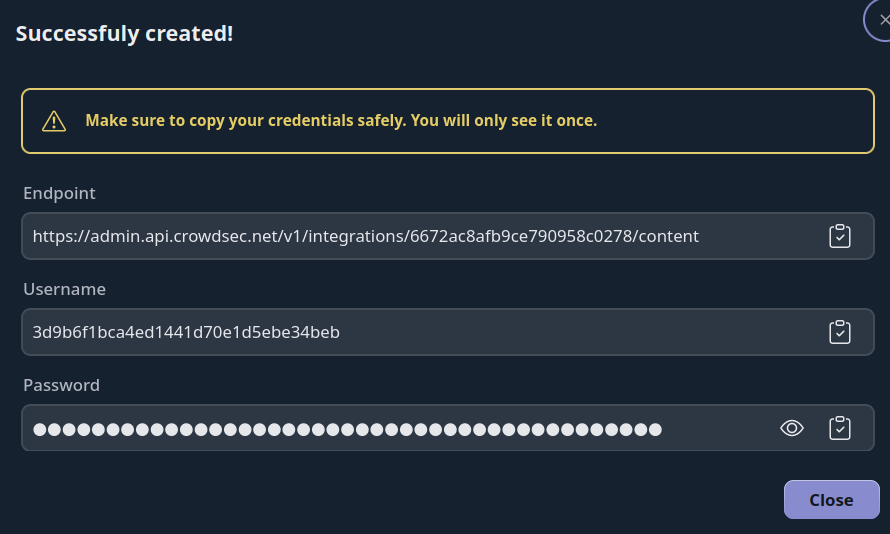
The credentials shown next are displayed only once. Copy them before closing this screen. If you lose your credentials, you can regenerate them via Configure → Regenerate Credentials on the integration page.
With this HTTPS endpoint and Basic Auth credentials, you can verify the endpoint with any HTTP client, for example:
curl -u 'usr:pass' https://admin.api.crowdsec.net/v1/integrations/$integID/content
Step 4 - Subscribe to Blocklists
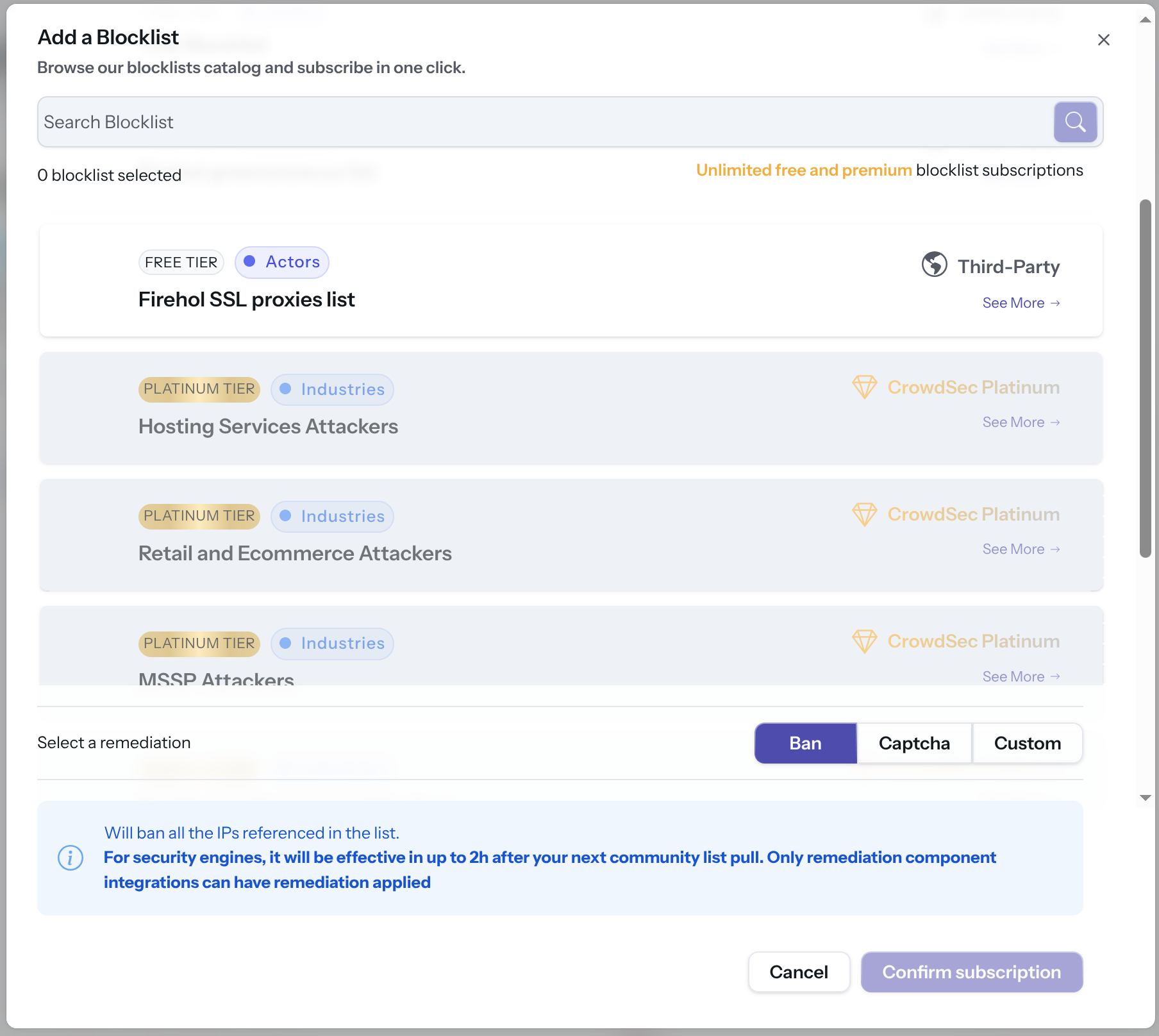
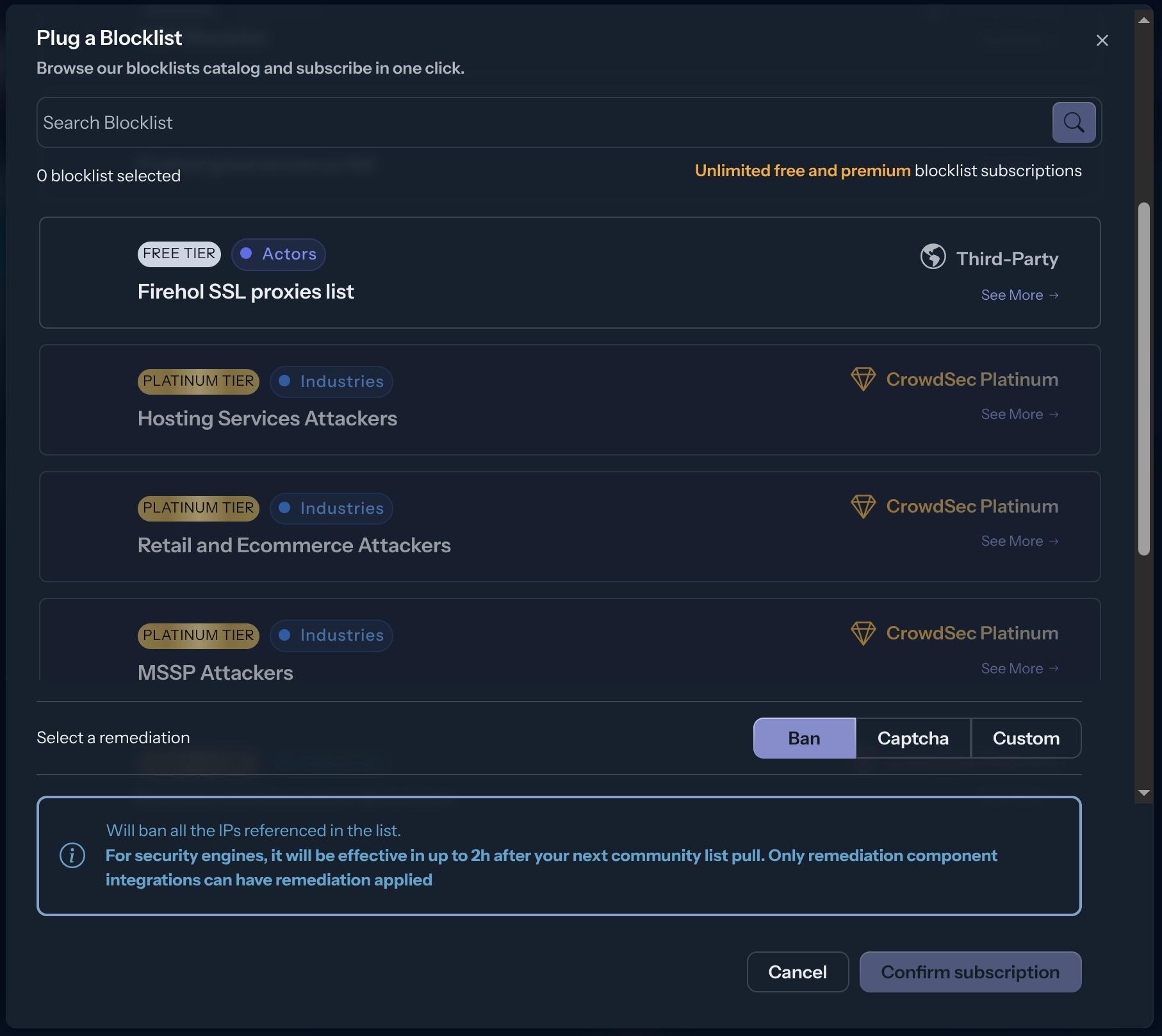
The integration endpoint will serve the deduplicated blocklists it's subscribed to. After creation, a subscription pop-up appears automatically. You can also access it later via the Add Blocklist button.
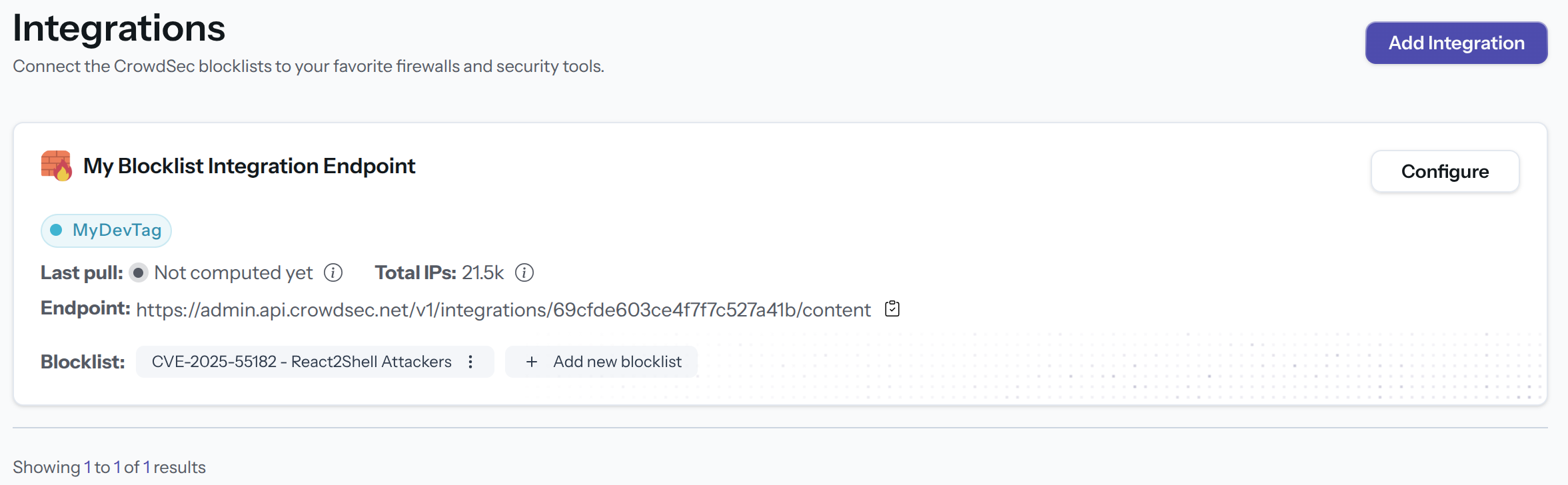
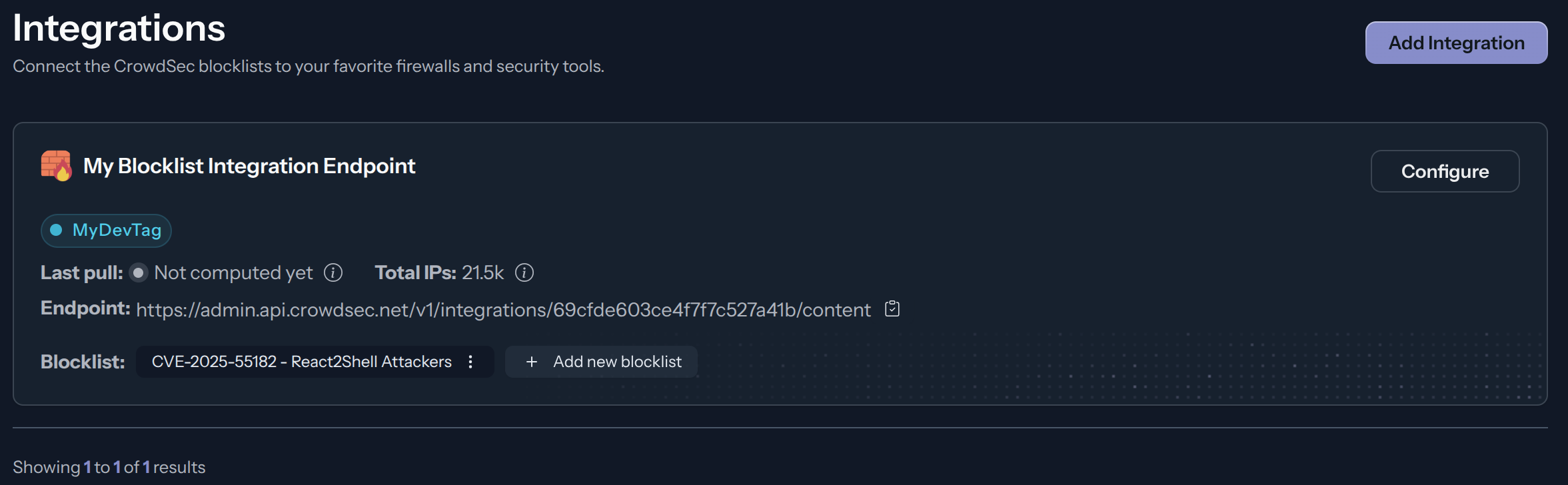
Select one or more blocklists available for your plan, then click Confirm Subscription. The blocklist name(s) will appear in the integration tile once subscribed.
Manage integration size limits with pagination
If you want to learn how to manage integration size limits with pagination, please refer to the Managing integrations size limits with pagination section.
References
Next Steps
Subscribe to blocklists in the Blocklist Catalog to populate your integration.